
- June 4, 2020
- Author: Oran Swift PhD
- Blog
Top tips for working with DWG Reference Files
In almost every project, you will need to reference some sort of files. Of course, the files you reference will be AutoCAD files (.DWG), but sometimes these file types could be varied such as .PDF, .DGN, point clouds, and coordination files. In this article, we will go over a few of our top tips and tricks for working with AutoCAD DWG reference files.
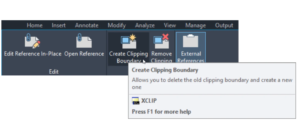
Tip #1: Create Clipping Boundary
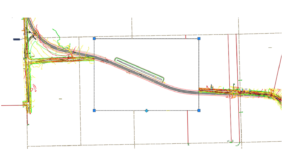
As soon as you reference a file into your drawing, we recommend that you clip it if you do not need the entire area of the reference file. To do so, simply select any graphic from the reference file and choose the Create Clipping Boundary tool in the Ribbon.
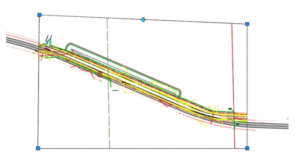
Just follow the command line prompts to clip your reference file to the desired boundary.
Tip #2: Open Reference
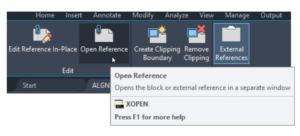
Sometimes you want to open the reference file(s) in your drawing and fix something in them. To do so, simply select the reference file and choose Open Reference from the Ribbon.
Tip #3: XLIST
This is one of our favourite tips when working with references. There are many times you will want to know what layer something is on. Of course, if you select the reference file, it chooses the whole reference file.
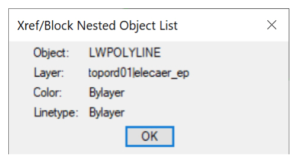
Simply type XLIST in the command line, select the object, and a dialog box will appear telling you what the object is in the reference file, as well as what layer the object is on.
Tip #4: Invert
Want to create a “hole” in your reference? Simply choose the Invert clip option from the Clipping Boundary tool.
These are just a selection of our top tips for when using AutoCAD and working with DWG reference files. If you are looking to learn more, take a look at some of our AutoCAD training courses or head over to our YouTube channel.
Related Courses